
Your first Bitbase futures trade, step by step
activate, move USDT over, pick margin mode, place it, and confirm it actually closed
Key takeaway
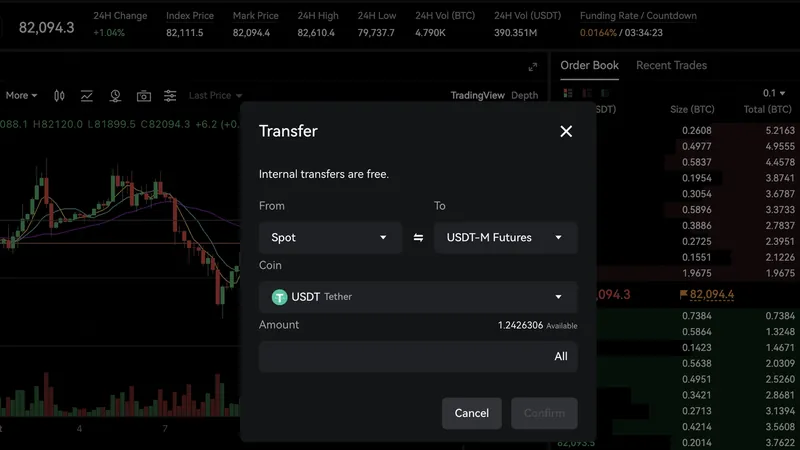
Bitbase's help center has a clean beginner walkthrough for USDT-M perps. Here's the short version, plus the two spots where new traders usually get confused. The image is from Bitbase's own help-center guide: the web Transfer window moving USDT from Spot to USDT-M Futures, sitting over the BTCUSDT perpetual chart and order book.
Before you start
- Sign up, log in, and finish all the verification and futures activation steps the platform prompts you for. Futures isn't open until that's done
- Have USDT in your Spot account (deposit first if not)
- Know what Cross vs Isolated margin, leverage and trading fees mean before you touch the order panel
The seven steps (web; the app is the same flow under Trade)
- Activate the futures account. Futures → USDT-M Futures in the top nav, then follow the Open Futures Account prompt
- Transfer margin. Transfer in the right panel → from Spot to USDT-M Futures → USDT → amount → confirm. Only USDT and USDC can be moved into the futures account right now
- Pick the contract and settings. Choose the pair (the guide uses BTCUSDT as its example), choose Cross or Isolated, set leverage, then choose the order type: Market, Limit, Conditional, Post Only or Trailing Stop
- Place the order. For a limit: price, size or value, then Buy/Long or Sell/Short. Add TP/SL if you want it
- Check the fill status (more on this below)
- Manage the position. The Positions tab shows side, size, margin, unrealized PNL and estimated liquidation price
- Close and verify. Close → set the order → submit, then check Order History, Position History and the transaction log
Trap 1: a transfer isn't a position
Moving USDT over just gives you margin. Nothing is open until an order is placed and filled. If your Spot balance shows funds but futures says insufficient balance, you haven't transferred yet.
Trap 2: "Close" isn't closed
A close order can rest in the book or fill partly. Whatever hasn't filled is still a live position with market risk. Same on the way in:
- Unfilled: sitting in Open Orders
- Partially filled: the filled part is a live position, the rest is still an open order. Cancelling the order does not close the filled part
- Fully filled: shows in Positions
Two warnings straight from the guide
- Leverage above 10x "significantly increases liquidation risk"
- Liquidation runs on Mark Price, not the last traded price on the candles, so the chart can look fine while the position is in trouble
After every trade
- Clear stale open or conditional orders
- Remember partial closes leave the rest exposed
- Your balance moves with realized PNL, trading fees and funding fees
- If something looks wrong, save the pair, order ID, time and a screenshot for support. Never share your password, verification codes or keys
Open an account
BitbaseBitbase fees, review and signup details
Open BitbaseLiquidityFlow may earn a commission if you register through that link. Affiliate disclosure